
Insights
Asset library
A shared store of images, video, and documents that any campaign in your brand can pull from.
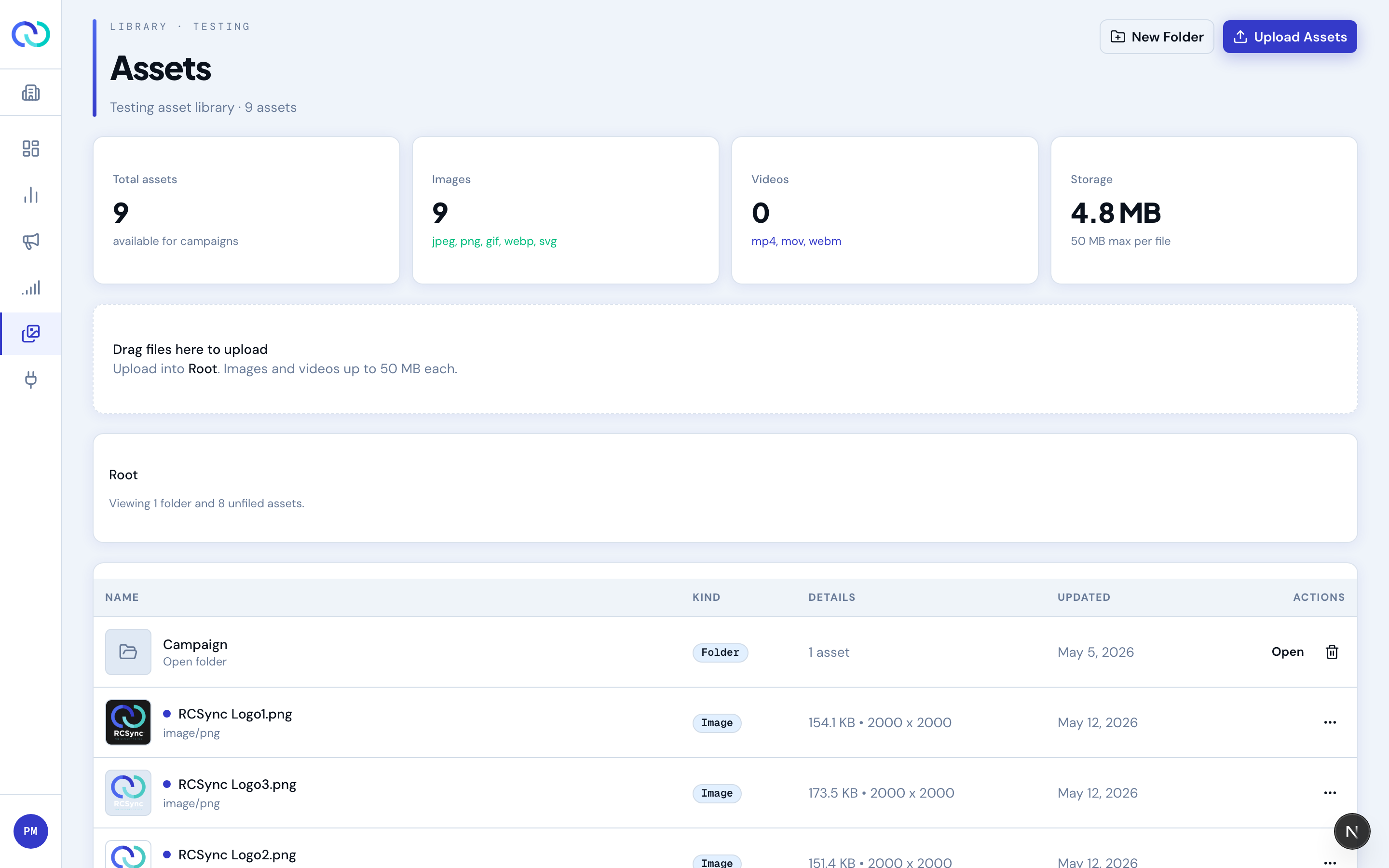
Folders
Folders keep a large library scannable. They're flat — there's no nesting. Root shows your folders alongside any assets that aren't filed in one; click a folder to open it, and the breadcrumb takes you back. Whichever folder you're in is where new uploads land, which the upload area spells out.
Finding an asset
The toolbar under the breadcrumb searches and sorts the library. The moment you set any filter you are searching every folder, not the one you're standing in — the whole point is to find a file when you don't remember where you put it. Each result shows which folder it lives in, and the line above tells you how many of your assets matched. Clear drops the filters and puts you back where you were browsing.
- Search — matches the filename, the description, and the tags. Since descriptions are written for you on upload, searching for what's in a picture usually works even if the filename is a camera serial number.
- Kind — images or videos.
- Tag — one exact tag. The list is built from the tags actually in use, and doesn't appear until something is tagged.
Sort covers newest, name, size, and kind, and applies to every view. In the list view the column headers sort too — click once to sort, again to reverse; Details sorts by file size. Folders stay above assets, and follow the sort where it means something for them.
Uploading
Upload Assets accepts most common image and video formats and can take several files at once. To add a whole folder of media, use Upload Folder or drag a folder straight into the library — every supported file inside is uploaded, and anything unsupported is skipped automatically. Files larger than the brand limit are rejected on the client; the limit is shown in the upload area. After upload, the asset shows its original dimensions and file size.
The library accepts JPEG, PNG, GIF and WebP images, and MP4, MOV and WebM video. Not all of them can go into an RCS message: WebP and MOV can't be sent over RCS, so the campaign media picker shows them but won't let you select them. Upload a JPEG, PNG or MP4 version for use in campaigns.
Descriptions and tags
Each asset has a description — a short, internal note about what the asset is and when to use it — and a set of tags for keyword matching. Click any asset to open its details, where you can preview it, edit the name, description and tags, move it between folders, copy its URL, or delete it. Both are written to help Aura reason about your media; they are private — never shown to message recipients and never publicly visible — even though the asset file itself is served publicly.
When you upload an image, its description and tags are generated automatically from the image itself, so it is findable straight away. You can edit either at any time; once you do, they are yours and won't be overwritten. If a generated description isn't useful — or your own turns out worse — use Regenerate with Aura in the details panel to redo it, with an Undo if you change your mind.
Keeping an asset out of campaigns
Some things in the library aren't meant to be sent — a logo, legal artwork, a raw source file, an internal reference shot. Tick Don't use in campaigns in the asset's details and it stops being a candidate: Aura will never choose it when drafting, and if you pick it by hand you'll get a warning.
It isn't a delete. The asset stays in the library and stays usable everywhere else — brand and sender branding, reference, download. Assets marked this way show a Not for campaigns badge in the list.
What the metadata tells you
- Dimensions — exact pixels for images, plus duration for video. Use this to confirm something fits a rich card before you pick it.
- Type — MIME type, useful when troubleshooting a rendering issue.
- Size — file size on disk.
Cropping and aspect ratios
RCS templates have fixed aspect ratios — most notably 1.91:1 for rich card heroes. The asset library tracks the original aspect ratio and warns you in the campaign wizard if the asset will be cropped. There's no in-app cropper; do that in your design tool of choice before uploading.
Deleting assets
You can delete an asset only if it's not currently referenced by any campaign in Draft or later. The delete dialog tells you what's in the way. To free up the asset, archive or duplicate the campaigns that hold it.
See also: Message content for how the wizard picks assets.